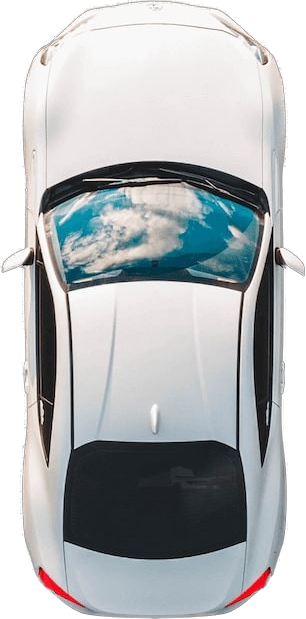
Left Headlight
ID: 1
Name: headlight_l
Right Headlight
ID: 2
Name: headlight_r
Left Taillight
ID: 3
Name: taillight_l
Right Taillight
ID: 4
Name: tailight_r
Front, Left Indicator
ID: 5
Name: indicator_lf
Front, Right Indicator
ID: 6
Name: indicator_rf
Rear, Left Indicator
ID: 7
Name: indicator_lr
Rear, Right Indicator
ID: 8
Name: indicator_rr
Left Brakelight
ID: 9
Name: brakelight_l
Right Brakelight
ID: 10
Name: brakelight_r
Middle Brakelight
ID: 11
Name: brakelight_m
Left Reverse Light
ID: 12
Name: reversinglight_l
Right Reverse Light
ID: 13
Name: reversinglight_r
Extra Light 1
ID: 14
Name: extralight_1
Extra Light 2
ID: 15
Name: extralight_2